Linux Journey: Dual-boot adventure and my first week on Ubuntu
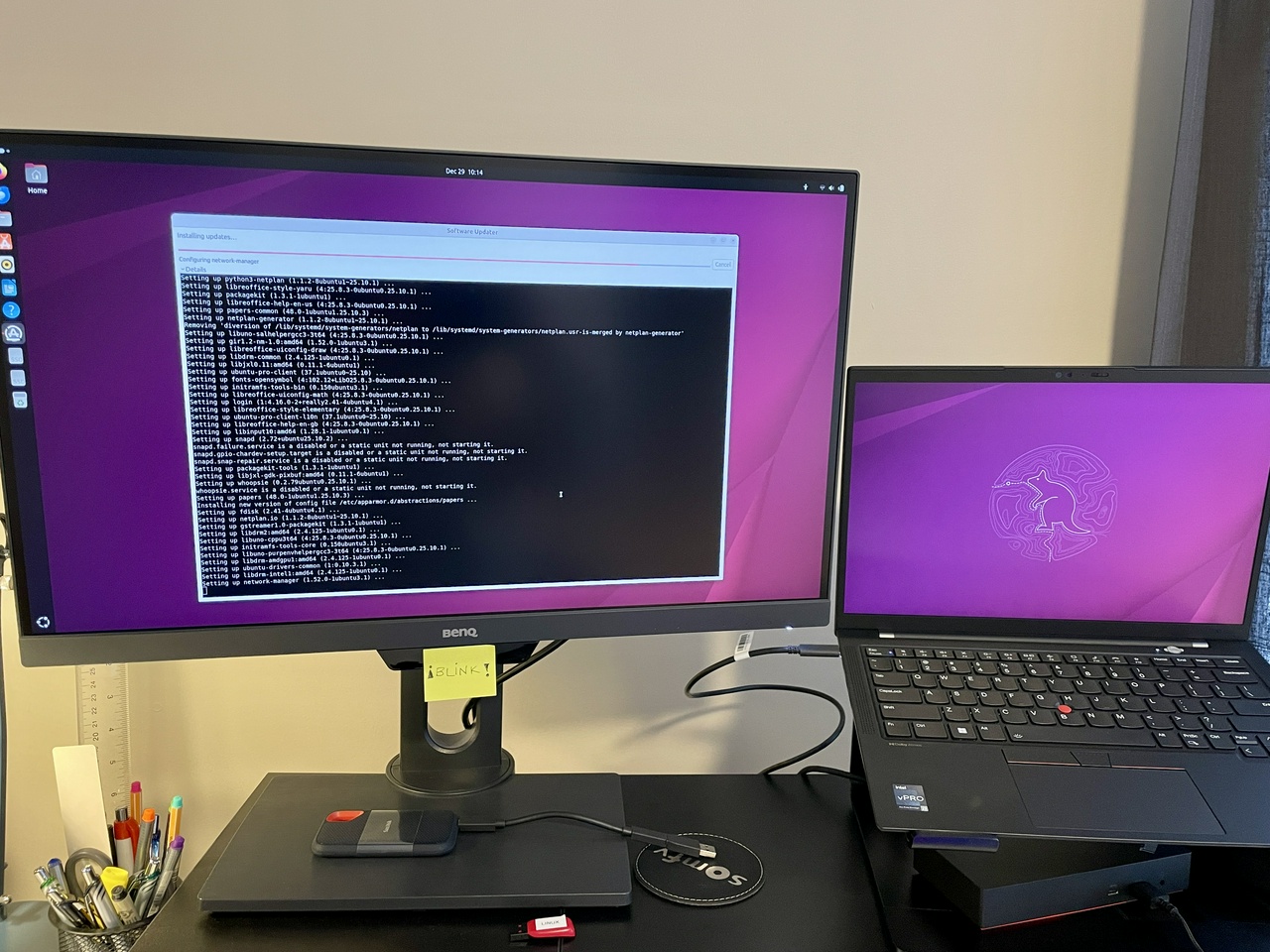
Okay, so I did backup all my data and after the initial tests I decided to stick with Ubuntu 25.10. I did all the experiments on an old laptop that I don't use anymore and I decided to install Linux on my main daily driver: the Thinkpad X1 Carbon.
And I wanted to make it dual-boot with Windows 11, just in case.
It turns out, Windows 11 doesn't really like to share space with another operating system, and I had to go through a bunch of steps to get it ready for dual-boot.
And also, I wanted to have a separate partition only for data, as I used to have in the old days when I would reinstall my operating system once every year at least.
These were the resources that helped me:
- Dual Boot Is Easy...Until It Isnt: Failsafe Techniques to Keep Microsoft From Screwing It Up – by Rob Braxman
- How to clean up a Windows disk (and prepare for dual-booting, and why you should)
Steps to prepare Windows 11 for Dual Boot
This is my checklist:
Clean up Windows partition to free up some space: uninstall apps, clean up C:/Windows/Temp, run Windows Clean-Up Tool more than once including the Clean System files option
Back up data from Windows 11 (I did a full backup of OneDrive, and some other app folders like Calibre/Standard Notes back-ups). Steam was all synced to the cloud, so I just uninstalled everything
Disable Bitlocker on Windows: search for Bitlocker Manger and turn it off
Disable Secure Boot: go to BIOS/UEFI and turn if off (after I turned it off, I had to re-login on Windows with the outlook account and reset my PIN to open Windows again)
Disable Fast Start-Up (>Control Panel>Hardware and Sound>Power Options>Choose what the power buttons do>disable. This is to avoid Windows from changing the GRUB later on
Create a bootable USB with the Windows install for future emergency https://www.microsoft.com/en-ca/software-download/windows11 => Create Windows 11 Installation Media (hopefully, I’ll never have to use this!)
Create free space for Linux using the Disk Manager on Windows
- Here I couldn't shrink all the space available on my C:/Drive! I had 816 Gb free space, but the Disk Manager only allowed me to shrink 456GB. I searched for an answer online and found this helpful video:
- Cannot shrink a volume beyond the point
- I couldn't resize the partition using Windows Disk Manager because of unmovable disk space. I tried all the tricks I saw online (disabling restore, pagesys, hybernation, etc...). The only thing that worked was installing a third-party app to do that for me.
- Tried out AOMEI Partition Assistant =>did not work out
- EaseUS Partition Master: could successfully shrink the C:/ drive.
- So I ended up with these partitions:
- Windows: 155GB
- Linux: 128GB
- Data: 668GB
==> Install Ubuntu using the “Manual Installation” option. The steps described in Rob Braxman's video helped a lot.
First week on Ubuntu
The Ubuntu installation process went smoothly, no issues whatsoever.
I finally copied all my OneDrive backup to my D:/DATA drive. It was super fast!!! Like, less than 20 min, I don't know, 15min? It was so fast I couldn't believe it! I still can't believe how fast everything is with Linux. 🚀
(Note: it took me a whole DAY to copy my OneDrive data in Windows 11 to my SSD)
I decided to switch to another cloud storage service, so now my D:/DATA drive is synced with pCloud.
I learned that it is not good to name folders/files stating with dot “ . “. I mean, in Ubuntu, any item that starts with a .dot is a hidden folder! So I learned to use the CTRL+H to hide/unhide folders/files in Nautilus. I renamed some of my folders as well, to avoid the confusion.
I installed the “GNOME Tweaks” to customize the appearance a bit. That was enough customization for me right now.
I learned that I can use the keyboard shortcut “Win + . ” and then space to open up an Emoji Selector! 😊
I installed Calibre and pointed the location of the Calibre Library as the same place as it was before in my Data drive => And the whole library was there! I didn't loose anything, it was that easy.
After I installed all my usual apps, it was smooth sailing with Ubuntu. I didn't miss Windows at all. I had to log into Windows a couple of times to get some data from Outlook, but other than that, I didn’t need Windows. But, since I went through all the hassle to have it in dual-boot, I’m leaving it there just in case.
Next steps
Now I'm looking at some email/calendar alternatives that are not Google or Microsoft. After some quick searching, I'm doing a 30 day trial of Fastmail, and I'm really impressed with it. It did import all of my old data from Outlook/Gmail without issues in less that an hour. I was impressed.
I'm testing the calendar feature as well, to see if I can sync it with my Work Outlook calendar and vice-versa.
Also, I'll test it using Thunderbird.
Thoughts? Discuss... if you have a Write.as account or Reply by email
By Noisy Deadlines
Minimalist in progress, nerdy, introvert, skeptic. I don't leave without my e-reader.